How the patient check-in kiosk works
The DoctorConnect kiosk turns a lobby tablet into a self check-in station. A patient enters their last name and date of birth, confirms it is them, and appears as arrived on your front desk queue within about 30 seconds. Your clinic chooses the optional steps: contact details, insurance, card photos, forms and copay.
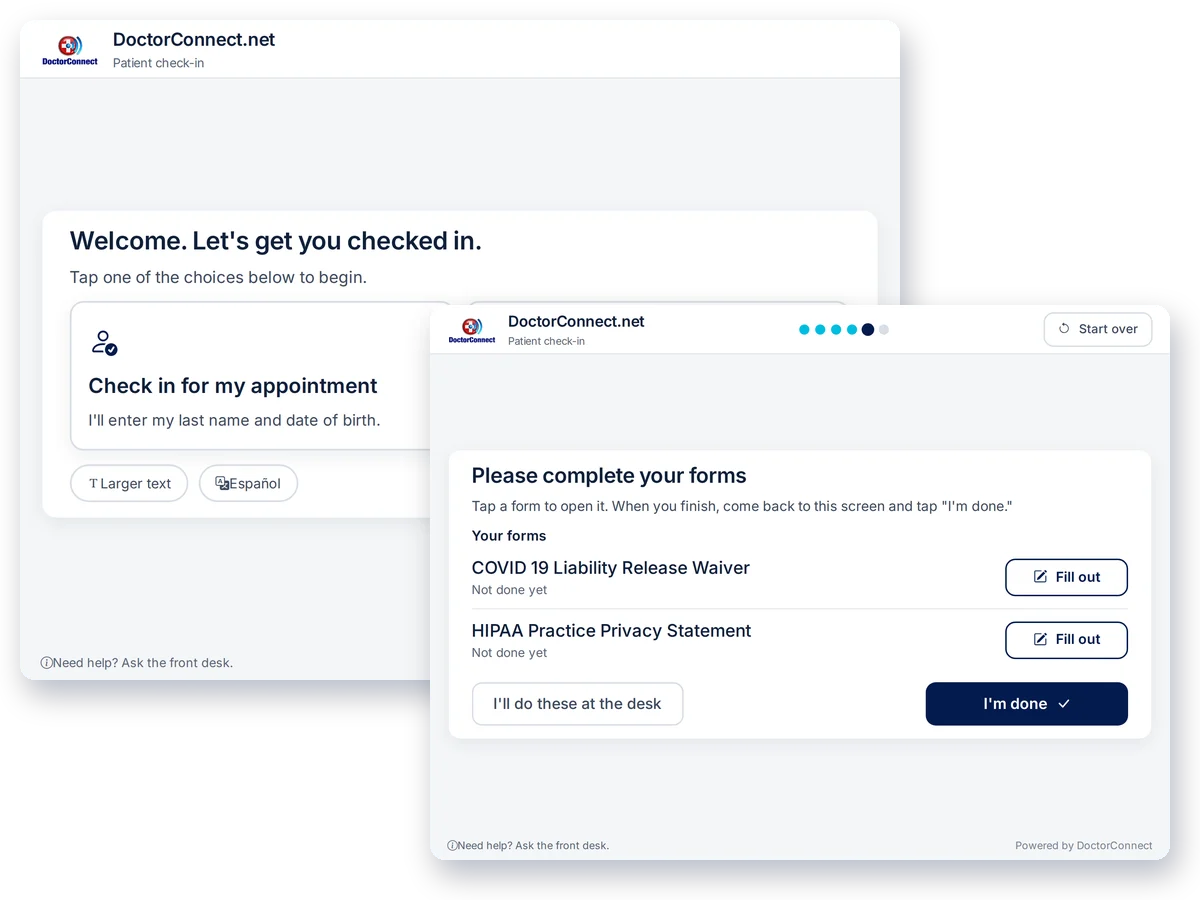
What happens from arrival to seat
One patient at a time, with nothing left on the tablet when they walk away.
-
Staff set up the tablet once
An administrator turns the kiosk on in Settings and clicks Enroll a device. DoctorConnect shows a one-time 6-digit setup code that works once and expires after 15 minutes. Staff open the setup link on the tablet, enter the code, and the tablet is tied to that practice from then on.
-
The patient finds their appointment
They tap Check in for my appointment, then enter their last name and date of birth on large on-screen number keys. A clinic can also ask for the last 4 digits of their phone. If the front desk already handed them a 6-digit code, they tap I have a code instead.
-
They confirm it is them
The kiosk shows the appointment it found. Tapping Yes, that's me marks the visit arrived, or pre-checked-in if the clinic prefers, and records that it came from the kiosk. The front desk queue picks it up on its next refresh, within about 30 seconds.
-
They work through the steps you turned on
Contact details, insurance, card photos, forms, copay and account balance are each optional, and each has a skip button. Anything a patient skips is recorded so the front desk knows what is still open.
-
The screen clears itself
The done screen lists what was completed and clears after 20 seconds. If a patient walks away mid check-in, the kiosk asks whether they are still there and then resets, 8 minutes after the last tap by default.
Finding the right appointment without a login
Patients do not create an account or remember a password. The kiosk only searches your practice's own schedule.
- Last name plus date of birth, with an optional last 4 digits of phone as a second check
- Finds any appointment today, at any hour, widened by your own window (2 hours back and 4 hours ahead by default)
- A patient who types their full name, or "Last, First", is still matched
- If the details match more than one person, the kiosk refuses to guess and sends them to the desk
- Five failed lookups in 10 minutes pauses that tablet for 5 minutes
- The front desk can hand any scheduled patient a 6-digit code from the queue board instead
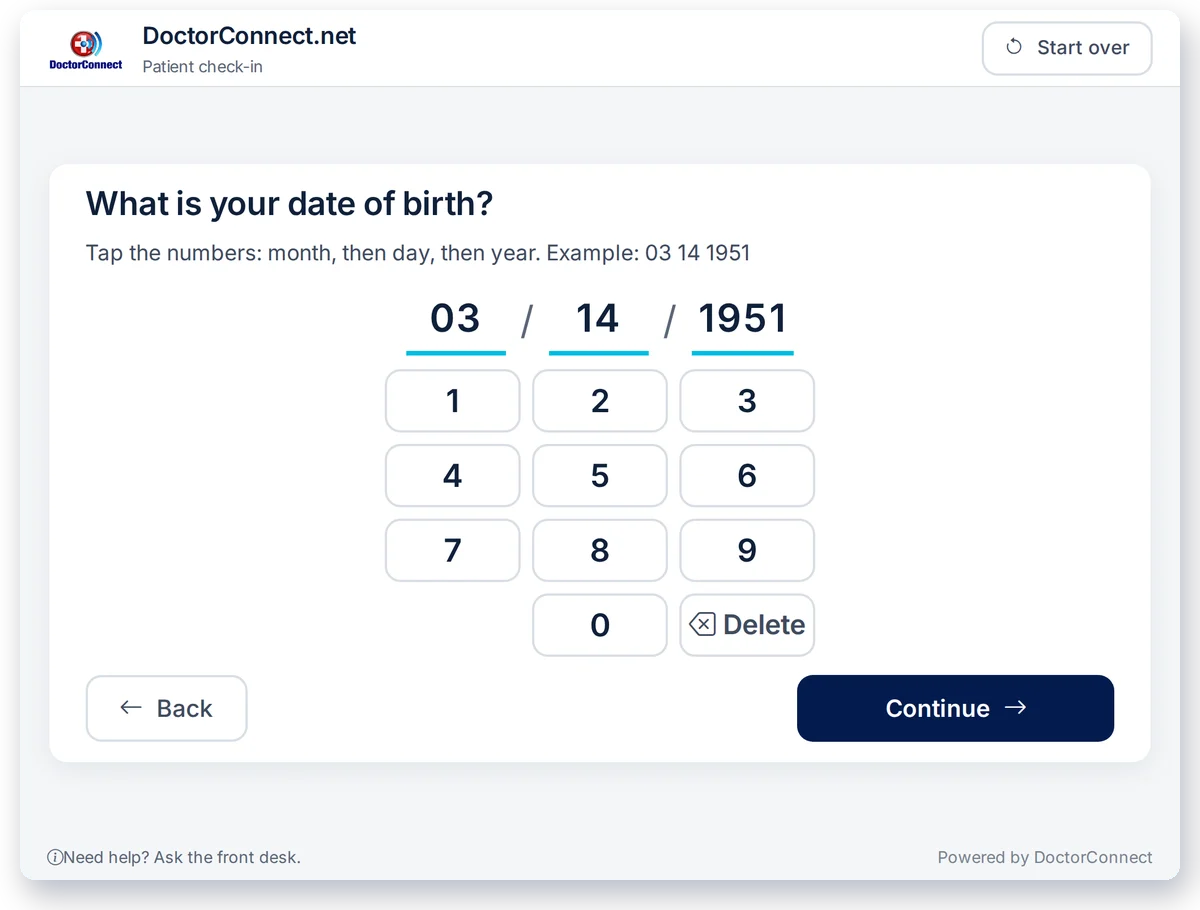
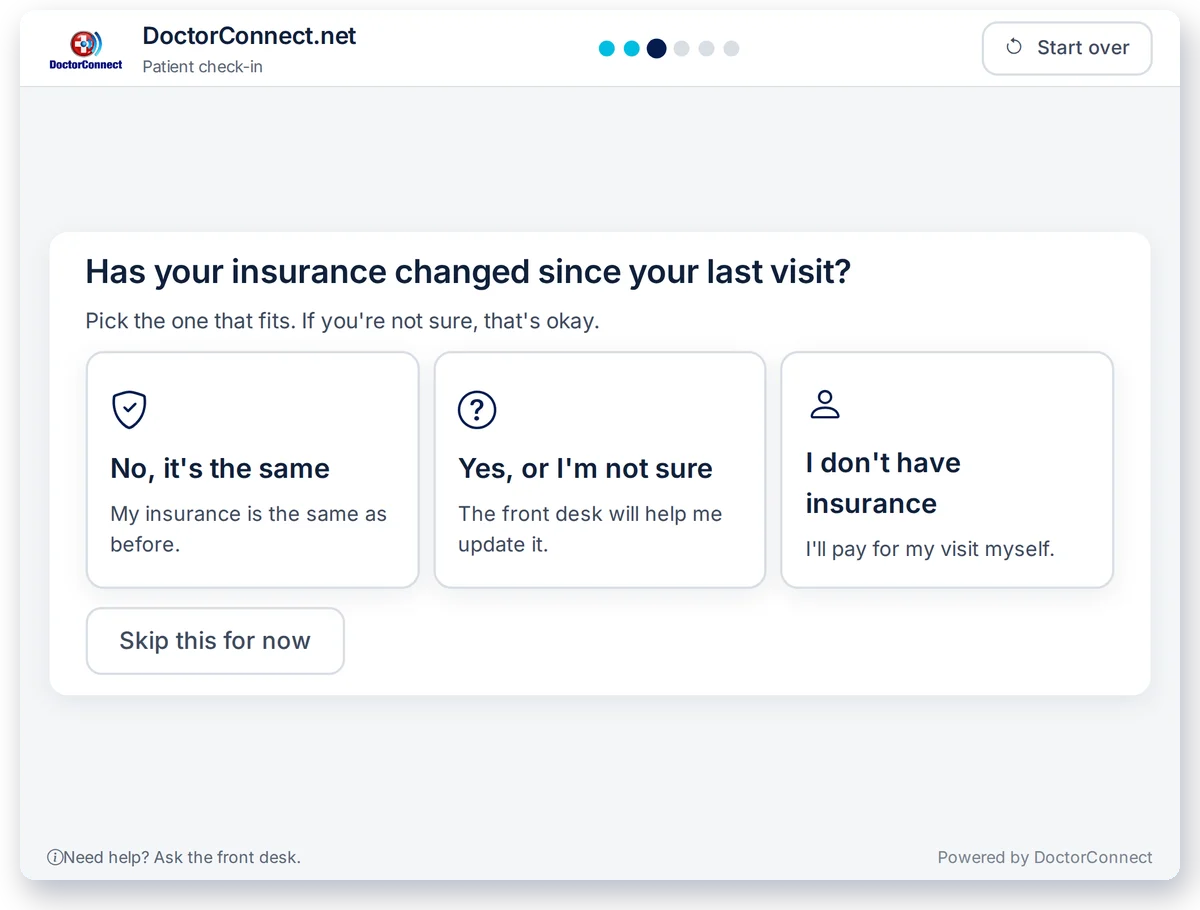
Optional steps, chosen by each clinic
Turn on only what your front desk actually needs. Every step can be skipped by the patient without blocking check-in.
- Confirm or correct the mobile phone and email on file
- Answer whether insurance changed since the last visit, in three large choices
- Photograph an ID and insurance card with the tablet camera, or get a text with a link to do it on their own phone
- Complete the forms assigned to this visit
- Pay the visit copay on a secure hosted card page, or choose to pay at the desk
- See and pay an outstanding account balance
Forms on the tablet, into the same record
Kiosk forms are the same forms your patients already complete online, and they land in the same place.
- Forms appear one question per screen, with large tap targets for choices and a finger signature pad
- Submissions go through the normal DoctorConnect forms pipeline: the PDF, the completed-forms list and patient matching all work as they do today
- Which forms appear follows your existing form rules for appointment type, location and provider
- Each form has its own Show in kiosk switch, so nothing appears on the tablet until you choose it
- Forms with calculations or conditional logic open in a second tab on the tablet rather than question by question
- If no forms are due, the patient never sees an empty forms screen
What the front desk sees
Check-in updates the same queue board your staff already work from.
- Self checked-in patients carry a Kiosk badge on the queue board
- The visit's status history and an appointment note record that the check-in came from the kiosk
- Skipped steps are recorded, so staff know who still needs forms, cards or payment
- A usage report shows kiosk check-ins per day, their share of all arrivals, and a per-device count over 7, 30 or 90 days
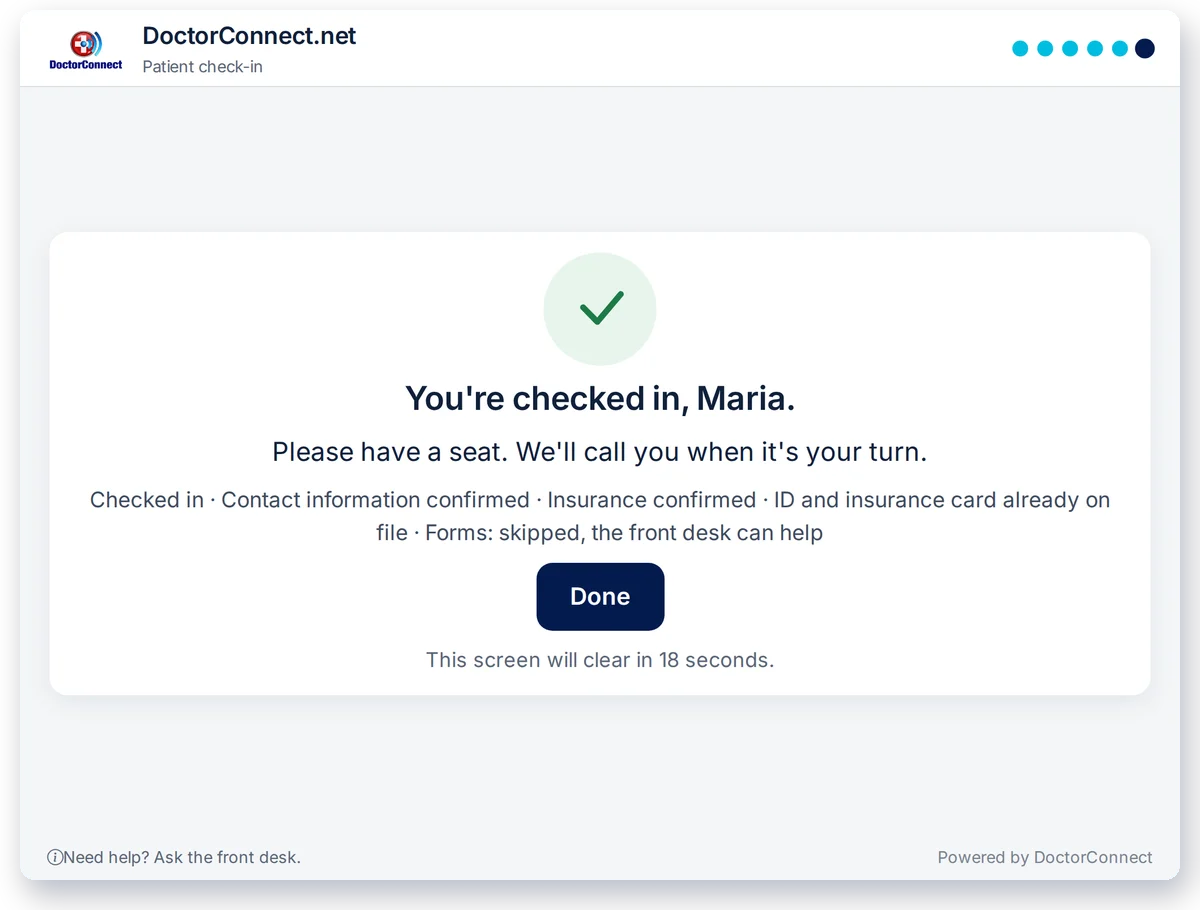
Questions we get about the check-in kiosk
Does the tablet keep any patient information?
No. Nothing patient related is stored in the browser. The done screen clears after 20 seconds, an idle tablet asks whether the patient is still there and then resets 8 minutes after the last tap by default, and no session can last longer than 30 minutes. The next patient always starts from the welcome screen.
How do you stop someone else from using the kiosk?
The kiosk page only loads on a tablet your staff enrolled with a one-time setup code. The tablet holds a device key, and DoctorConnect stores only a fingerprint of that key, never the key itself. Revoking a tablet in Settings stops it within 60 seconds.
What tablets does it work on?
It runs in the web browser, so an iPad or Android tablet works. On an iPad, add the kiosk to the home screen and use Guided Access to lock it to that one page. On Android, use screen pinning or a kiosk browser. Allow the camera if you want patients to photograph their cards.
What if a patient cannot find their appointment?
The front desk opens the patient on the queue board and taps Kiosk to generate a 6-digit code. The patient taps I have a code on the tablet and continues from there. This also covers patients whose name or date of birth is recorded differently in your schedule.
Is the kiosk available in Spanish?
Yes. A patient taps Español on the welcome screen and every kiosk screen switches to Spanish. The tablet returns to English for the next patient. A custom welcome message your clinic writes is shown exactly as entered, so write it in both languages if you need both.
Can patients pay their copay at the kiosk?
Yes, if you turn that step on. The kiosk shows the copay for the visit and opens a secure hosted card payment page. It moves on by itself once the payment goes through. Patients who prefer can tap I'll pay at the desk, and staff see that the copay is still open.
What if a patient tries to check in twice?
The kiosk finds the same appointment and tells them they are already checked in and that the front desk knows they are here. When a patient has more than one appointment today, it picks the earliest one that is not finished, preferring one they have not checked in for yet.
Does the kiosk show our practice logo?
Yes. It uses the company logo you already uploaded in the Portal and Scheduler settings, and you can turn the logo off. There is also a Larger text button on the welcome screen for patients who need it.
What the kiosk does not do yet
Worth knowing before you plan your lobby around it.
- Patients cannot scan a QR code from their reminder text to check in; that is planned but not built
- Forms with calculations or conditional logic open in a second tab instead of the question-by-question view
- A welcome message your clinic writes is not translated automatically
- It checks in patients who already have an appointment today; walk-ins without a booking still go to the desk
See the kiosk check in a patient
We will run a live check-in on a demo tablet and show the front desk side as it happens.
Talk to our team